


AXING Application Note
The automatic email notification feature in SMARTPortal enables proactive monitoring of your MK, MIP, and MIE headends. Instead of having to log in to the portal, you will be notified directly by email with log notifications according to your configuration.
Configuration of mail notifications
1.SMARTPortal users can configure in the account settings for which events they would like to be notified by e-mail.
- Go to Account Settings.
- Click the Bell-Icon.
- Select the categories according to your wishes.
- Select the interval between mail-notifications about one device.
- Click Save.
Note: If you cannot see the Bell-Icon, please clear your browser cache.
Device-specific email notifications
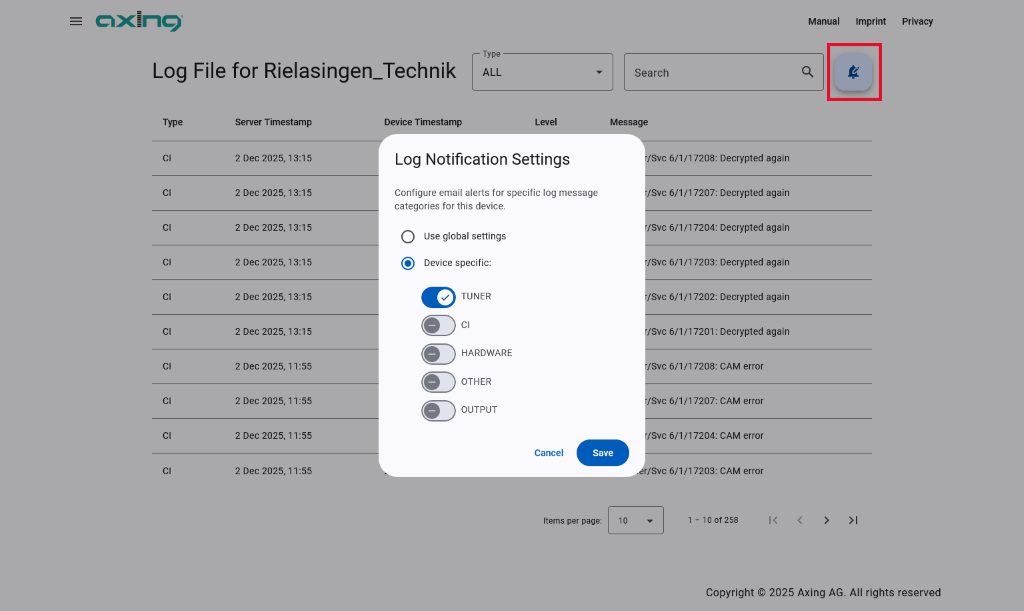
In addition, device-specific mail notifications can be configured. This means that individual devices can be monitored more closely or excluded from the notifications.
- Click View Logs.
- Click the Bell-Icon.
- Select Device specific.
- Select the categories according to your wishes.
- Click Save.
Error messages
The following table shows which error messages are contained in the corresponding categories:
| Category | Message |
| TUNER | Tuner X no signal. |
| Tuner X locked again. | |
| Tuner X: too high input power: X dBuV (max X.) | |
| Tuner X: too low input power: X dBuV (min X). | |
| Tuner X: errors in input signal. | |
| CI | CI/Tuner/Svc X/Y/Z: Not decrypted |
| CI/Tuner/Svc X/Y/Z: Decrypted again | |
| CI/Tuner/Svc X/Y/Z: No input data | |
| CI/Tuner/Svc X/Y/Z: CAM error | |
| HARDWARE | Processor temperature too high: X *C |
| Ventilation temperature too high: X *C | |
| Measured RF output level too small (msr:X,min:Y) | |
| Power low voltage: X mV | |
| Power X: Disconnected | |
| Power X: Failure (temperature Y *C) | |
| Power X: Overtemperature Y *C | |
| OUTPUT | Modulator X fill overflow: N packets |
| Too high IPTV datarate: X Mbps (Y %) | |
| OTHER | ReasonText (errorcode). Modulators disabled by 192.168.0.145. |
| ReasonText (errorcode). Modulators disabled by remote device. | |
| ReasonText (errorcode). Start replacing 192.168.0.145. | |
| Start monitoring devices, modulators disabled | |
| CAS SCG X state changed: Clear (/ Scrambling / Keep last CW) | |
| NTP server connection failed. | |
| SMARTPortal: Email and Userkey do not match. | |
| SMARTPortal: Invalid login response. | |
| SMARTPortal keepalive failure, reconnect. | |
| Connected to SMARTPortal. | |
| SMARTPortal connection dropped, reconnect. |
Funktionsweise
Many error messages often occur within a short period of time, which could lead to spam. A signal error at the input, for example, leads to error messages for each individual tuner. In addition, counter messages to the original error message are also logged. In the event of a temporary CI error, an error message and a counter message will be logged for each affected service within a few seconds. Logs are accumulated over a period of 2 minutes in order to avoid spam and still provide prompt information. After the first error message, all error messages for a device are collected over 2 minutes and sent in an e-mail.
Due to the accumulation phase and the usual technical latencies when sending e-mails (depending on the provider), an average of approx. 3 minutes elapse between the arrival of the first error message on the SMARTPortal server and the arrival of the e-mail. Slightly increased latencies may occur if the server is heavily utilised.
As long as an error condition exists on the device, it is logged again by the headend once an hour. If the error is not rectified, the SMART portal also sends an e-mail notification with the same message every hour. If the device sends further messages, these are also only sent one hour later. You can change the interval in the account settings. You can still receive further emails for other devices within the interval.
The system handles emails strictly separately for each device and user. This means that several users receive separate emails for one device. A user also receives separate e-mails for several devices.
The headends always log error messages with UTC time stamps. The mail notifications also refer to UTC time stamps. In the SMART portal, however, logs are displayed in the time zone of the individual user. Deviations may therefore occur here.
Tips & recommendations
We recommend configuring email notifications according to individual requirements in order to maximize the efficiency of notifications and avoid spam:
- Deselect the error category “OTHER” in the global settings. This often contains informative logs that do not require critical action (e.g., SMARTPortal connected & disconnected)
- Select an appropriate interval for email notifications to avoid hourly emails for an existing log message.
- Adjust the configuration for specific devices if, for example, a device frequently logs non-critical log messages.
- If you manage multiple devices as a team, please use a generic account (e.g., info@firma.com) for email notifications. Otherwise, each team member would receive separate emails for the same messages.
- Make sure your devices are updated to the latest software version. This allows you to benefit from improvements and bug fixes, resulting in fewer log messages.
- If you are not receiving email notifications despite your configuration, please check your spam folder. We recommend adding the email address to your whitelist.
Legal notice
The mail notification function will be available to all users free of charge until further notice. Axing reserves the right to introduce a payment model for selected features in the future. Axing reserves the right to deactivate mail notifications for individual devices or users.